

Paste image as a file — a simple Windows Explorer trick
A PowerShell script and a registry entry that add a context-menu option to save a clipboard image straight to a PNG file.
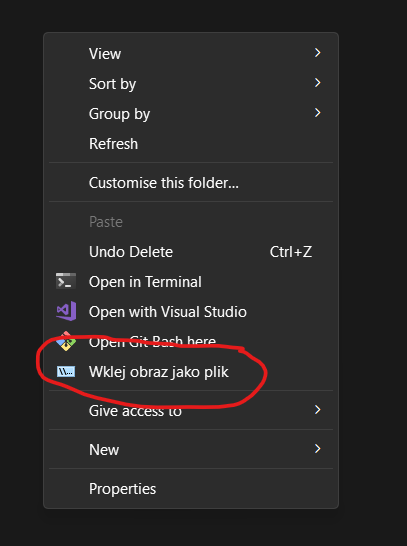
A screenshot, a Snipping Tool capture, or an image copied from a browser ends up in the clipboard — and then you still have to paste it into some app just to save it as a file. This small trick adds a “Paste image as file” entry to the Windows Explorer context menu that does it in one click, right in the current folder.
How it works
The solution is two files:
paste-image.ps1— a PowerShell script that reads the image from the clipboard (handling both raw PNG data, as copied from Chrome/Edge, and plain bitmaps) and saves it aswklejony_YYYYMMDD_HHMMSS.pngin the folder it was launched from.install-paste-image.reg— a registry entry that adds “Paste image as file” to the folder background context menu (right-click on empty space in Explorer).
Once installed, just copy an image to the clipboard, right-click in the target folder, and pick the new option.

The PowerShell script
The core problem is handling two different clipboard formats. Chrome and Edge copy an image as a raw PNG stream (the "PNG" format), while most other apps (Paint, Word, Snipping Tool) put a ready-made System.Drawing.Image object on the clipboard. Both cases need handling:
param(
    [string]$Folder
)

$Folder = $Folder.TrimEnd('\')
$logPath = Join-Path $env:TEMP "paste-image-error.log"

try {
    Add-Type -AssemblyName System.Windows.Forms
    Add-Type -AssemblyName System.Drawing

    if (-not $Folder -or -not (Test-Path $Folder)) {
        throw "Zly folder docelowy: '$Folder'"
    }

    $timestamp = Get-Date -Format "yyyyMMdd_HHmmss"
    $dataObj = [System.Windows.Forms.Clipboard]::GetDataObject()

    if ($dataObj.GetDataPresent("PNG")) {
        # raw PNG bytes straight from the clipboard - this is how Chrome/Edge copy images
        $stream = $dataObj.GetData("PNG")
        $path = Join-Path $Folder "wklejony_$timestamp.png"
        $fs = [System.IO.File]::Create($path)
        $stream.CopyTo($fs)
        $fs.Close()
    }
    elseif ([System.Windows.Forms.Clipboard]::ContainsImage()) {
        $img = [System.Windows.Forms.Clipboard]::GetImage()
        $path = Join-Path $Folder "wklejony_$timestamp.png"
        $img.Save($path, [System.Drawing.Imaging.ImageFormat]::Png)
    }
    else {
        [System.Windows.Forms.MessageBox]::Show("Schowek nie zawiera obrazka.", "Info") | Out-Null
    }
}
catch {
    $_ | Out-File -FilePath $logPath -Append
    [System.Windows.Forms.MessageBox]::Show("Blad: $_`n`nSzczegoly w $logPath", "Blad") | Out-Null
}
A few details that matter:
$dataObj.GetDataPresent("PNG")is checked first — the raw PNG stream preserves original quality and transparency, unlikeClipboard.GetImage(), which sometimes drops the alpha channel.%Vfrom the registry becomes$Folder— that’s the current Explorer folder, so the file lands exactly where you right-clicked.- Errors go to a log file in
%TEMP%, not just a message box — useful since the script runs without a console, so nothing else shows what went wrong. - A missing clipboard image isn’t treated as an error — the user gets an info message, not a red exception.
The registry entry is just a thin wrapper that wires the script into the context menu:
Windows Registry Editor Version 5.00

[HKEY_CLASSES_ROOT\Directory\Background\shell\WklejObrazJakoPlik]
@="Wklej obraz jako plik"
"Icon"="imageres.dll,-5302"

[HKEY_CLASSES_ROOT\Directory\Background\shell\WklejObrazJakoPlik\command]
@="powershell.exe -NoProfile -WindowStyle Hidden -ExecutionPolicy Bypass -File \"C:\\Tools\\paste-image.ps1\" \"%V\""
-WindowStyle Hidden and -NoProfile mean no flashing console window and no full PowerShell profile load — unnecessary overhead for a one-off task.
Installation
- Copy
paste-image.ps1toC:\Tools\(create the folder if it doesn’t exist). - Double-click
install-paste-image.regand confirm adding the entry to the registry. - Done — “Paste image as file” now appears in the context menu when you right-click empty space in any folder.
To uninstall, just delete the HKEY_CLASSES_ROOT\Directory\Background\shell\WklejObrazJakoPlik key in Registry Editor.
Files
A tiny trick, but it saves a few clicks every time you need to quickly drop something from the clipboard onto disk.